Prerequisites:
- You need a FIDO2 token and a recent browser.
- Not all FIDO2 tokens are supported by SURFsecureID. Look here for an overview of supported FIDO2 tokens.
- Contact your institution to obtain a FIDO2 token, or order one online.
- Access to your institution's mail account is required.
Your institution determines
- which tokens you can register
- how many tokens you can register
- how to activate a token
So you may not be able to choose some tokens or activation methods.
The Microsoft Office desktop and mobile applications (like Outlook, Word, Teams) work with a built-in browser that does not (yet) support the FIDO / webauthn standard. The login with a FIDO token therefore does not work for these applications.
Basics
Handle your FIDO2 token with care
- Your FIDO2 token is private, do not share it with others.
- Don't lose sight of your FIDO2 token; keep the token and computer separate from each other.
Register
- Go to the Registration Portal and start a new token registration.
- Choose FIDO2 and register your FIDO2 token for future logins.
Follow the instructions in the Registration Portal and your browser.
Action Edge op Windows 1) First registration step.
You may first be given a choice if there are several options, for example if your computer has a fingerprint sensor.
Choose USB, put your FIDO2 token in a USB port and touch your token.

2) Give permission to use this token. 
3) You will see this screen when you login with your FIDO2 token.
Insert your FIDO2 token into a USB port and touch your token.

Actie Chrome op Windows Chrome op Mac OSX 1) First registration step.
You may first be given a choice if there are several options, for example if your computer has a fingerprint sensor.
Choose USB, put your FIDO2 token in a USB port and touch your token.


2) Give permission to use this token.


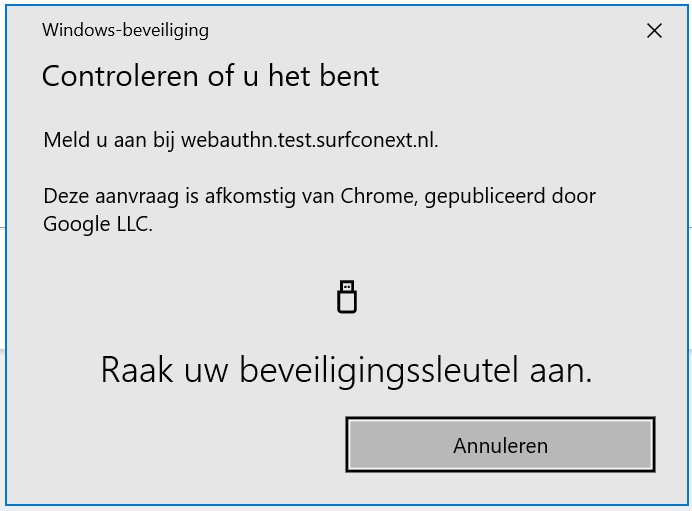
3) You will see this screen when you login with your FIDO2 token.
Insert your FIDO2 token into a USB port and touch your token.
Actie Safari op Mac OSX 1) Registration.
Insert your FIDO2 token in a USB port and touch your token.

2) You will see this screen when you login with your FIDO2 token.
Insert your FIDO2 token into a USB port and touch your token.

Actie
Firefox op Mac OSX 1) First registration step.
Insert your FIDO2 token in a USB port and touch your token.

2) Give permission to use this token.
Do not use the option to "Anonymize anyway".

3) You will see this screen when you login with your FIDO2 token.
Insert your FIDO2 token into a USB port and touch your token.

- Done registering your token? Then you still have to activate your token. Depending on your situation or the requirements of your institution, you must choose an activation method, or you will immediately see instructions for the method that is right for you:
- Activate yourself; you do this by choosing a recovery method (SMS or recovery code).
- Activate at a service desk. Do this within 14 days, because your activation code expires after 14 days
- Activate with an existing token.
- Issues? Read the manual
Log in
If you want to access a service with two-factor authentication:
- It depends on the type of FIDO2 token how it communicates with your computer; via USB, NFC or Bluetooth.
- With most FIDO2 tokens you will have to press a button
- After this you are automatically logged in
Replace and remove
- Go to the Registration Portal and delete your FIDO2 token registration. This way no one can abuse your token.
- If necessary, you can register a new token.
Browser support
To use the FIDO2 token you must have a browser that supports the "Webauthn" standard. The figure below shows the version numbers of the different browsers that support this standard and can therefore be used for FIDO2:

Source: https://caniuse.com/?search=webauthn
If your browser does not support the Webauthn standard and you try to register a FIDO2 token anyway, you may get an error message or a "loop" in which the page seems to be refreshing continuously.
