If for some reason you do not want to use the "Custom Packages" component you can of course use miniconda manually.
Step 1: Get Miniconda
Go to https://docs.conda.io/en/latest/miniconda.html#linux-installers to make sure you have the current link to download the installation script.
Use the link for "Miniconda3 Linux 64-bit".
Start a terminal in the JupyterLab dashboard.
Download the installation script.
wget https://repo.anaconda.com/miniconda/Miniconda3-py37_4.10.3-Linux-x86_64.sh
Step 2: Install Miniconda
Run the installation script.
("-b" skips all confirmations with "yes")
bash Miniconda3-py37_4.10.3-Linux-x86_64.sh -b
Initialize conda.
~/miniconda3/bin/conda init
Close the current terminal and start a new one.
Check that conda has been installed: the shell prompt should start with the name of the currently active conda-envrionment.
By default this is "(base)".
Try the version parameter.
(base) username@hostname:~$ conda --version
conda 4.10.3
The actual version, of course, can differ.
Update conda.
conda update conda -y
Step 3: Create a virtual conda-environment
Create a virtual environment. Put a number in the name because you might create more similar environments in future ("01_pandas1.3"). Here you can already include some packages, even with desired version ("pandas=1.3.0").
("--yes" to confirm all choices upfront)
conda create --yes --name 01_pandas1.3 pandas=1.3.0
Step 4: Activate the environment
Activate the environment.
conda activate 01_pandas1.3
Now the prompt should change to
(01_pandas1.3) username@hostname:~$
Step 5: Create a kernel from the environment
If you want to use your environment as a Jupyter-kernel, you can continue with this step.
Install the ipykernel tool into the environment.
conda install --yes --channel anaconda ipykernel
Run the ipykernel tool. The display name will identify your environment/kernel in Jupyter Notebooks.
python3 -m ipykernel install --user --name 01_pandas1.3 --display-name "Py Pandas 1.3"
You can now leave the environment again.
conda deactivate
Step 6: Use the new kernel
In JupyterLab, start a launcher tab. See that Notebooks or Consoles can be started with the new kernel.

Also existing Notebooks can switch to the new kernel.

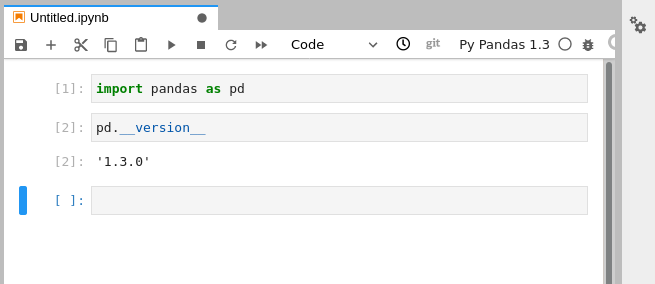
The pandas version we requested for the environment is in place.
Using conda to the full
Conda can do a lot. Environments can be exported and used for creating new instances of a particular configuration.
This is a great help when collaborating with other developers.
But these features are outside the scope of this manual.
Please refer to https://docs.conda.io/en
https://docs.conda.io/projects/conda/en/latest/user-guide/getting-started.html
or one of the countless other tutorials out there.